Production
01
Production
Foliage
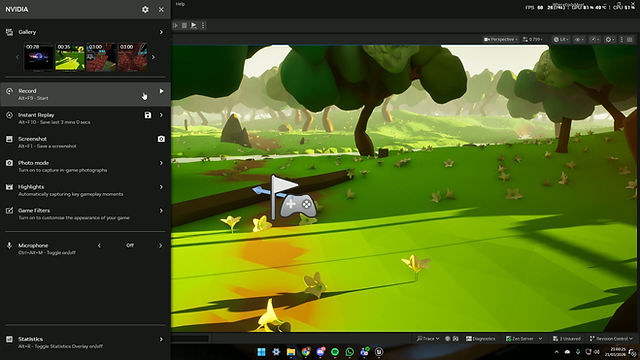
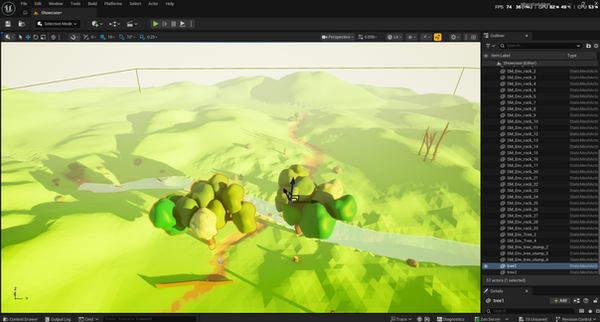
To easily populate the map with assets supplied by my team (flowers, trees and rocks), I have utilised the foliage tool in Unreal Engine. Manually placing hundreds to thousands of trees and flowers would be highly inefficient and detrimental to the project timeline. By using the Foliage tool, Unreal Engine renders these as ISMs (Instacted Static Meshes). This also improves optimisation, as the GPU doesn't need to call each individual asset, all of the assets gets called at the same time, resulting in a more stable game and frame rate. By default, Unreal Engine doesn't add collisions to the foliage assets. I had to manually toggle the collisions on for the collisions to function.

02
Production
Scaling and Placement
When I first imported all of the assets into Unreal Engine, the scaling looked incorrect. The reason for that would most likely be because creating models without a character or size reference in blender would be very difficult. To fix that, I have went into edit mode for the tree and set the scaling for all of the axis to 0.6. I have done the same thing with the flower and set all of the scaling options to 0.1. The pivot of the tree was also off set. Which caused the foliage tool to be weird. To fix this, I have manually changed and edited the pivot the the centre of the tree, making the foliage accurate and physically appealing.

03
Production
Buildings
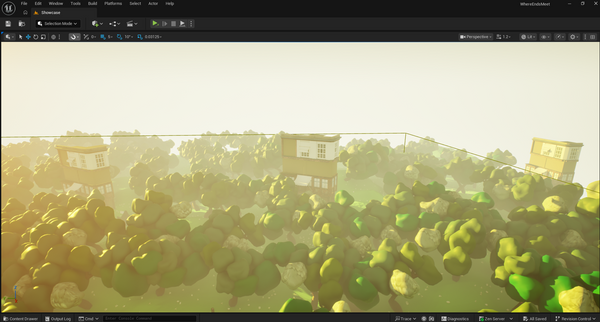
Since I was not able to finish the buildings in a timely manor, I have decided to still use the buildings, however only show the front of it. The building was quite small when I imported it. So I changed the scale in edit mode to around 2. I have scattered the building around the map. The amount of trees close and around the building make it look like an abandoned city.
04
Production
Main Character
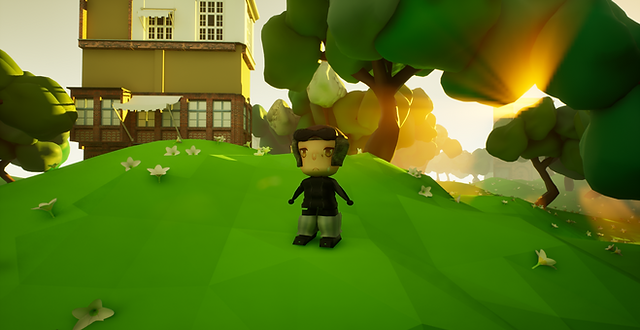
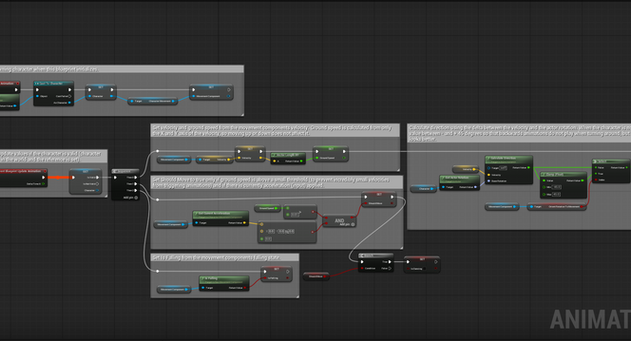
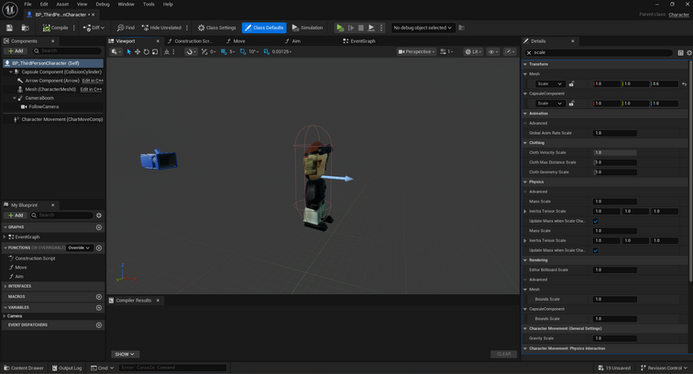
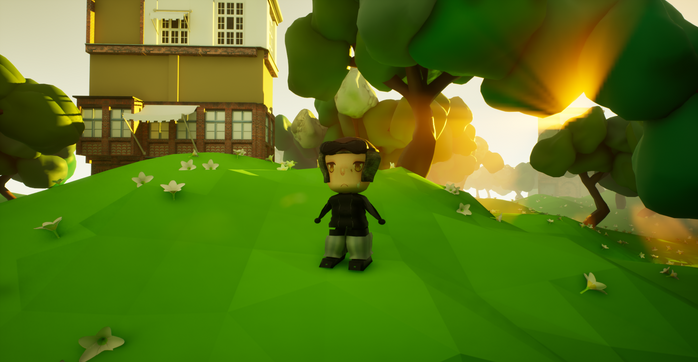
I have imported the character via FBX file to Unreal Engine. To change the mesh, I had to edit the default blueprint and change the skeletal mesh. When imported, the character seemed too tall. I have reduced the Z axis on the scale. While applying animations, I noticed you could only set one animation in the character blueprint. To solve this I had to use an Animation Blueprint to allow multiple animations like idle, jumping and walking. With these nodes, I was able to make it so the user can press the keybind B to start dancing the Macarena. If he moves the slightest, the character will stop dancing and go to its default animations.

05
Production
Main Menu
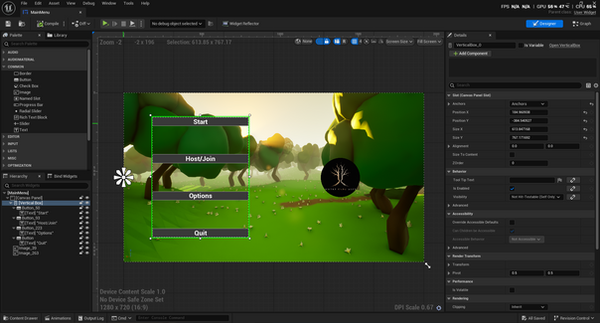
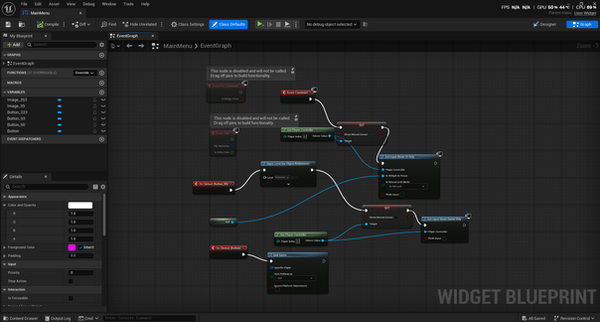
I have decided to make movies and a main menu when you start the game. I have used another level with a widget blueprint and a blueprint class. I have designed the main menu to have the map as the background, with 4 buttons. As I didn't have much time, I only made the play and quite button work. While messing with the nodes on the widget blueprint, the cursor did not work initially. To fix this, I have forgotten to place a "Event Construct" node into the blueprint. When I built and exported my game, the play button did not work. On the play button node, I had to change the event open level by name, to open level by object reference. This fixed the play button and the user is able to start the game as usual.


06
Production
Overall Look